Flipkart seller guide
How to Read the Flipkart Settlement Report, Sheet by Sheet
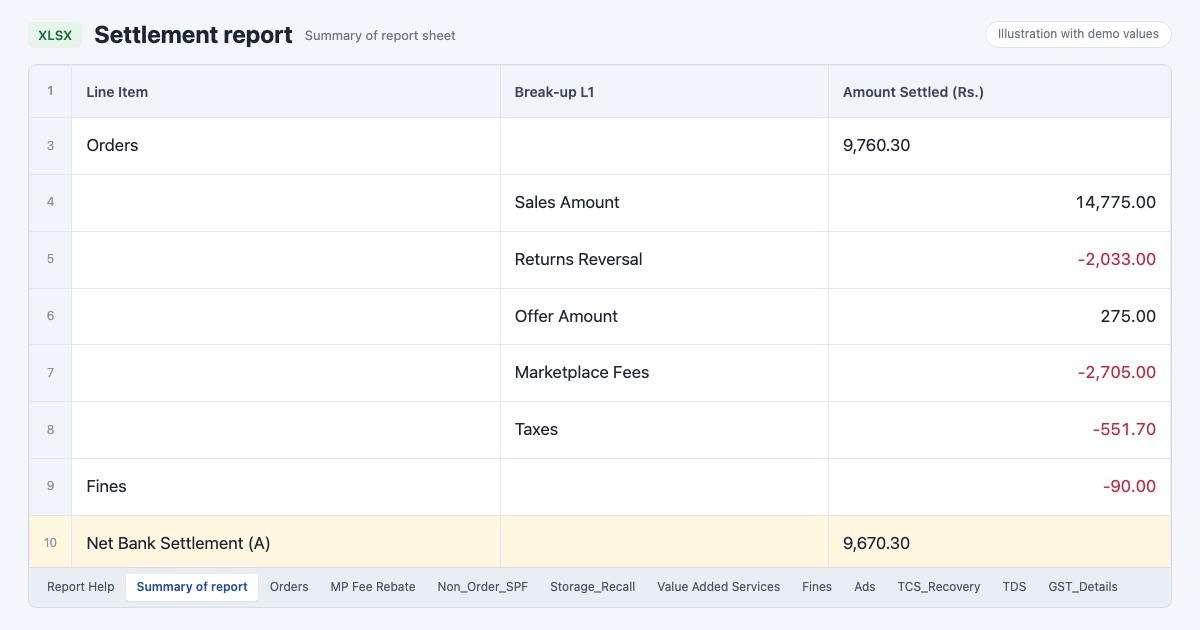
Quick answerThe Flipkart settlement report is an Excel file from Seller Hub (Payments, then Settlements). Start with the Summary of report sheet: its last line, Net Bank Settlement (A), is what Flipkart sent to your bank for the period. The Orders sheet has one row per settled amount for each order item, and its total equals the Orders line in the Summary. Fines, ads wallet top-ups, SPF claims, storage fees and TDS claims each have their own sheet, and GST_Details lists every fee with its GST.
On this page · 8 sections
Download the right file
In Flipkart Seller Hub, open Payments, then Settlements, and download the settlement report for the payment dates you want. The file covers money already settled. The Summary sheet states the period at the top as Payment Duration.
Our September to October file had 16 sheets. Most were empty for our store because we sell from our own pickup address (Flipkart calls it Non FBF) and had no storage, recall or paid services that month. Empty sheets are normal.
The sheets and what each one holds
The other sheets (Value Added Services, Google Ads Services, Support Services, Review Accelerator Services, Insight Subscription Services) list paid services bought with your payment balance.
| Sheet | What it holds | When it has rows |
|---|---|---|
| Summary of report | The totals for the period, ending with Net Bank Settlement (A) | Always |
| Orders | One row for each amount settled for an order item: sale, offer, refund, reversal | Always, if you had orders |
| Fines | Fines taken from the payout, with date, transaction ID and amount | When Flipkart fined the account |
| Ads | Ads wallet top-ups and withdrawals settled through your payout | When you topped up the ads wallet from payments |
| MP Fee Rebate | Fee rebates from seller incentive programmes | When you qualify for a rebate |
| Non_Order_SPF | SPF paid for stock missing in a Flipkart warehouse | Flipkart-fulfilled (FBF) sellers |
| Storage_Recall | Storage and recall fees for stock in Flipkart warehouses | FBF sellers |
| TDS | TDS claims Flipkart settled to you | After a TDS claim |
| TCS_Recovery | TCS recovered for an earlier month | Rare |
| GST_Details | Every fee with its GST rate and amount | Whenever fees were charged |
Read the Summary of report sheet first
The Summary gives the totals in the order Flipkart works them out. Orders is the sum of the Orders sheet. Under it, the break-up shows Sales Amount, Returns Reversal, Offer Amount, Customer Add-ons Amount, Marketplace Fees, Taxes and the other order lines. Fines, services and storage come after it, each as its own line.
The last block is the one to match with your bank: Net Bank Settlement (A) is the money Flipkart sent. Input GST + TCS Credits (B) is the GST on fees and the TCS you can claim back as tax credit; it is not extra cash.
Each Summary line has a short note from Flipkart beside it. For example, Sales Amount includes any shipping fee the customer paid, and Customer Add-ons Amount is recovered from you under Marketplace Fees in the same settlement.
How the Orders sheet is laid out
Row 1 groups the columns, row 2 has the column names, and data starts in row 3. Reading left to right:
- Payment Details: NEFT ID (the payout), Neft Type (Prepaid or Postpaid), Payment Date and Bank Settlement Value, the amount this row added to or took from the payout.
- Transaction Summary: Order ID, Order item ID, Sale Amount, Total Offer Amount, My share, Marketplace Fee, Taxes and Refund.
- Marketplace Fees: Commission, Fixed Fee, Collection Fee, Shipping Fee, Reverse Shipping Fee and the less common fees, one column each.
- Taxes: TCS, TDS and GST on MP Fees.
- Shipping Details: weights, box size and Shipping Zone. In our file these were filled on return rows.
- Order Details: order and dispatch dates, Seller SKU, quantity, Return Type and Item Return Status.
Rows are amounts, not orders
The same Order item ID can appear on several rows, because a sale, an offer and a return are each settled as their own row. In our month the Orders sheet had 1,206 rows for 956 order items. Add rows up by Order item ID before you count anything; this guide shows how.
Check your work against the Summary. The Bank Settlement Value of all rows in the Orders sheet should equal the Orders line. In our file both were the same to the paisa.
Two things that surprise first-time readers
- A customer return can make an order item negative. The sale and refund cancel out and the reverse shipping fee plus GST remain; see the reverse shipping fee guide.
- Fines do not name the order. In our Fines sheet each row had a transaction ID, a date and an amount, but no order item ID.
Let the dashboard read it for you
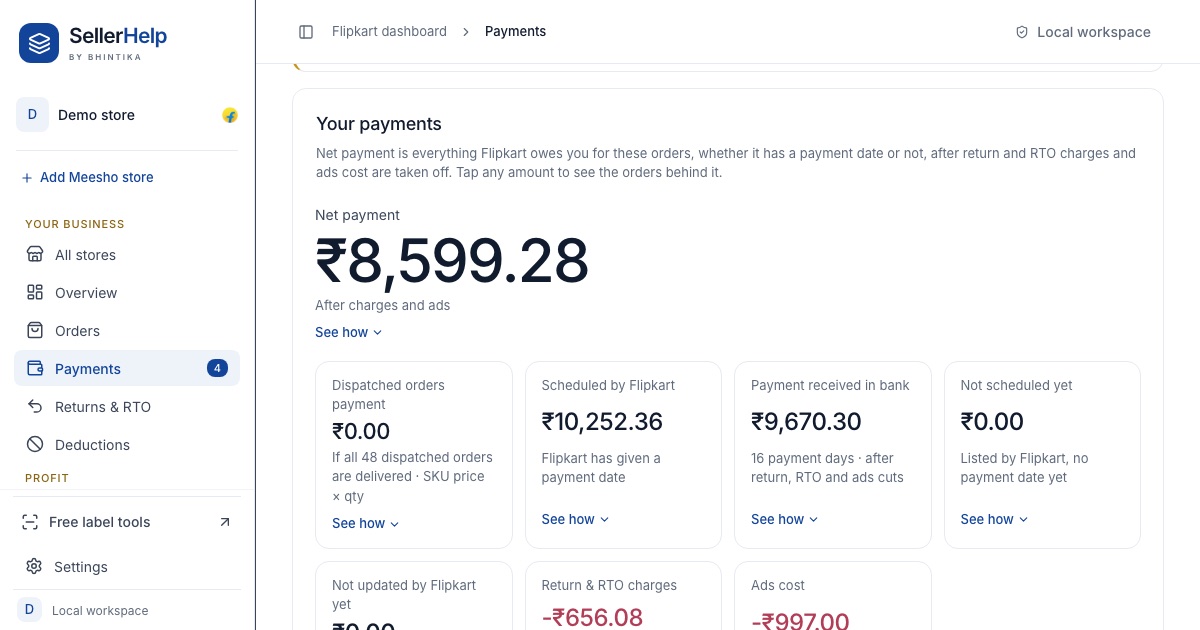
The free Flipkart seller dashboard reads every sheet of the settlement report, adds the rows by order item and shows them next to your orders and returns. The Payments tab starts with what you are owed and what has reached your bank.
Frequently asked questions
Which number in the settlement report is the money I received?
Net Bank Settlement (A) in the Summary of report sheet. For a single payout, add the Bank Settlement Value of every row with that NEFT ID across the sheets.
Why does the Orders sheet total not match my sales?
The Orders total is after Flipkart's fees, taxes, offers and refunds. Sales Amount in the Summary break-up is the figure before those.
Is Input GST + TCS Credits money Flipkart owes me?
No. It is GST on fees and TCS that you can use as tax credit when you file GST returns. Ask your accountant how to claim it.
Do I need every sheet?
Read the Summary, Orders and Fines sheets every time. The other sheets matter only if you use Flipkart warehouses, paid services or the ads wallet from payments.