Flipkart seller guide
Flipkart Orders or Returns Report Opens With an Error or Looks Empty: The Fix
Quick answerFlipkart's Orders and Returns reports are .xlsx files whose data sheet says it ends at the header row, even though hundreds of order rows follow it. Apps and tools that trust that size show only the header, an empty sheet or an error. Your orders are still in the file. Upload the original file to the free Seller Help Flipkart dashboard, which reads every row, or open it in Microsoft Excel and save a fresh copy.
On this page · 6 sections
What is wrong inside the file
An .xlsx file is a zip folder of small XML files, one for each sheet. Each sheet starts with a line that states which cells hold data, for example A1:AD1.
In the Returns report we downloaded from Seller Hub, the Returns sheet states A1:AD1, a single header row, but it holds 134 rows. The Orders report did the same: A1:AM1 on a sheet with 1,612 rows. The Help sheet in both files states its size correctly. Every sheet in our settlement report states A1, which is wrong as well.
A program that trusts the stated size reads the header and stops. A program that reads every row ignores it. That is why the same file can look empty in one app and complete in another.
Signs that your file has this problem
- The sheet shows the column names and nothing under them.
- An import tool says the file has 0 orders, or finds only the header.
- An app reports an error or says the file is damaged when you open it.
- The file is tens of kilobytes or more although the sheet looks empty.
Fix 1: upload the original file to the dashboard
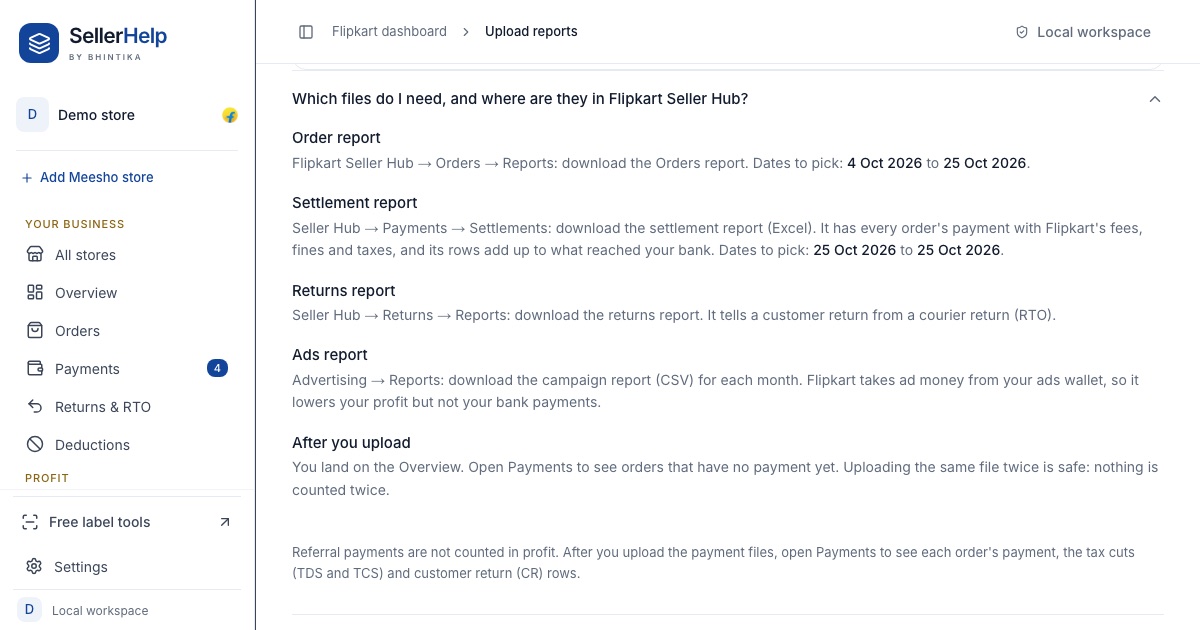
Download the Orders report (Seller Hub, Orders, Reports) and the Returns report (Seller Hub, Returns, Reports). Keep the files exactly as Flipkart gives them.
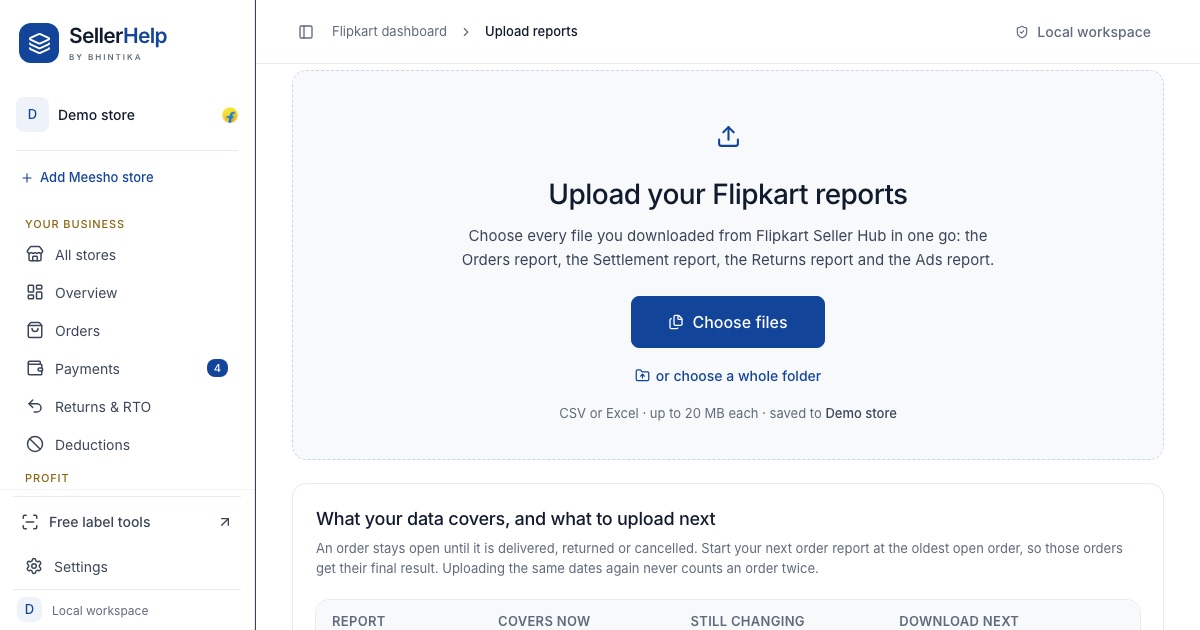
Open the free Flipkart seller dashboard and go to Upload reports.
Choose both files at once, and the settlement report too if you have it. The dashboard reads every row of the sheet, whatever size the file states.
On the Check, then save screen, compare the number of rows and the dates with what you expect, then confirm the import.
Fix 2: save a fresh copy in Excel
Open the report in Microsoft Excel. If Excel offers to recover or repair the content, accept.
Press Ctrl+End (Cmd+End on a Mac) to jump to the last row and check that your orders are there.
Use File, Save As and save a new .xlsx file with a new name. Excel writes the correct size into the copy, so other apps can read it.
Keep the original download unchanged, in case you need it for a dispute with Flipkart.
Two more things to clean before you match reports
- Order item IDs in the Orders and Returns reports start with OI: (OI:4386…). The settlement report has only the number. Remove OI: with Find and Replace before a VLOOKUP or XLOOKUP, or no row will match.
- The SKU is written three ways: """SKU:KH-OM-5""" in the Orders report, SKU:KH-OM-5 in the Returns report and KH-OM-5 in the settlement report. Strip the quotes and the SKU: part so the three match. The dashboard does both clean-ups when it reads the files.
- If you read the files with your own script, read until the last row instead of trusting the size the sheet states.
Frequently asked questions
Is my Flipkart report broken or incomplete?
No. The order rows are in the file. Only the line that states the sheet size is wrong, and some apps trust that line.
Will downloading the report again fix it?
Every Orders and Returns report we downloaded had the same header-only size, so a fresh download is likely to look the same. Upload the original to the dashboard or save a fresh copy in Excel.
Does the settlement report have the same problem?
In our settlement file every sheet states A1 as its size, which is also wrong. The dashboard reads all of its sheets the same way, row by row.
Do I need my Flipkart password for the dashboard?
No. You upload the files you downloaded from Seller Hub. Seller Help never asks for your Flipkart password.