Flipkart seller guide
Speed Up Daily Packing With Batch Crop and Sort for Flipkart Labels
Quick answerTo batch crop Flipkart labels, add every label PDF you downloaded from Seller Hub for the day to the Seller Help Flipkart label crop tool in one go. Choose "Crop labels", pick the thermal size on your roll, and set Sort Type to SKU (to pack one product at a time) or Courier Partner (to stack parcels by pickup agent, with each courier's labels in SKU order). Check the preview, download one sorted PDF and print at 100%. The PDFs are read in your browser and nothing is uploaded.
On this page · 8 sections
Why one-by-one label printing slows a Flipkart packing table
A Flipkart label PDF is an A4 page: the shipping label on top and the tax invoice below it. Cropping fixes the size problem, and the Flipkart label crop guide covers that part. This guide is about what happens after you have 40 or 80 labels in your hand.
Flipkart gives you the labels in the order you selected the orders, which is rarely the order you pack in. So you pick up a label, walk to the shelf for that product, come back, and do it again for the next label, which may be a different product on a different shelf. At handover you then sort the parcels again because two or three couriers come for pickup.
If you download labels more than once a day, you also end up with several PDFs. Printing them one after another means a separate order inside each file and no order across them.
Batch cropping puts all of those files into one job, and sorting decides the print order before anything reaches the printer. The labels come out of the printer in the order you will pack them.
Sort by SKU or by courier: which one fits your day
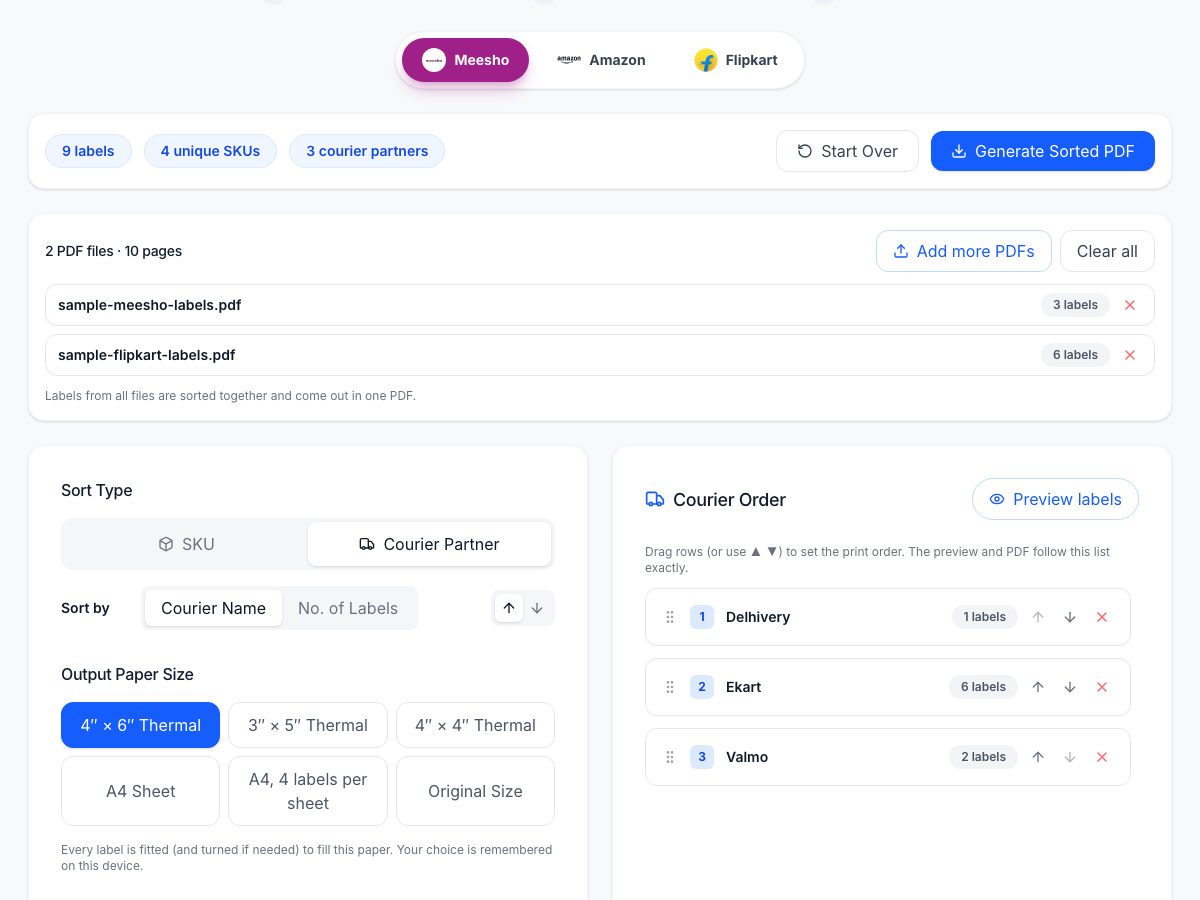
The Flipkart label crop tool has two sort types. Pick the one that matches the slow part of your day.
- Inside a courier group, SKUs are listed A to Z, and numbers in SKU codes are read in order, so SKU-2 comes before SKU-10.
- Labels where the tool could not read a SKU go last: at the end of the batch with SKU sort, at the end of their courier group with courier sort. A group whose courier could not be read goes after all the other couriers. Check those labels by hand.
- Labels with the same SKU keep the page order they had in the original PDF.
| Sort Type | Print order | Use it when |
|---|---|---|
| SKU | All labels of one SKU together, then the next SKU | Most of the time goes into picking products from shelves, or one person packs product by product |
| Courier Partner | One courier's labels together; inside each courier, labels grouped SKU by SKU | Two or more couriers pick up from you and parcels must be handed over in separate stacks |
Batch crop and sort Flipkart labels step by step
Download the label PDFs. In the Flipkart Seller Hub, download the labels for the orders you are packing. If you downloaded twice today, keep both files. The Flipkart label download guide shows where the download is. Keep the original files unchanged.
Add all the files at once. Open the Flipkart label crop tool, select "+ Add PDF files", choose every PDF for the day and use "Upload & Prepare Labels". One file can have up to 1,000 pages and 100 MB; one batch can hold up to 2,000 pages and 200 MB in total. A bigger day goes in two batches.
Keep "Crop labels" selected so the invoice part of each page is left out. Choose "Keep invoice" only if you print the full page on A4.
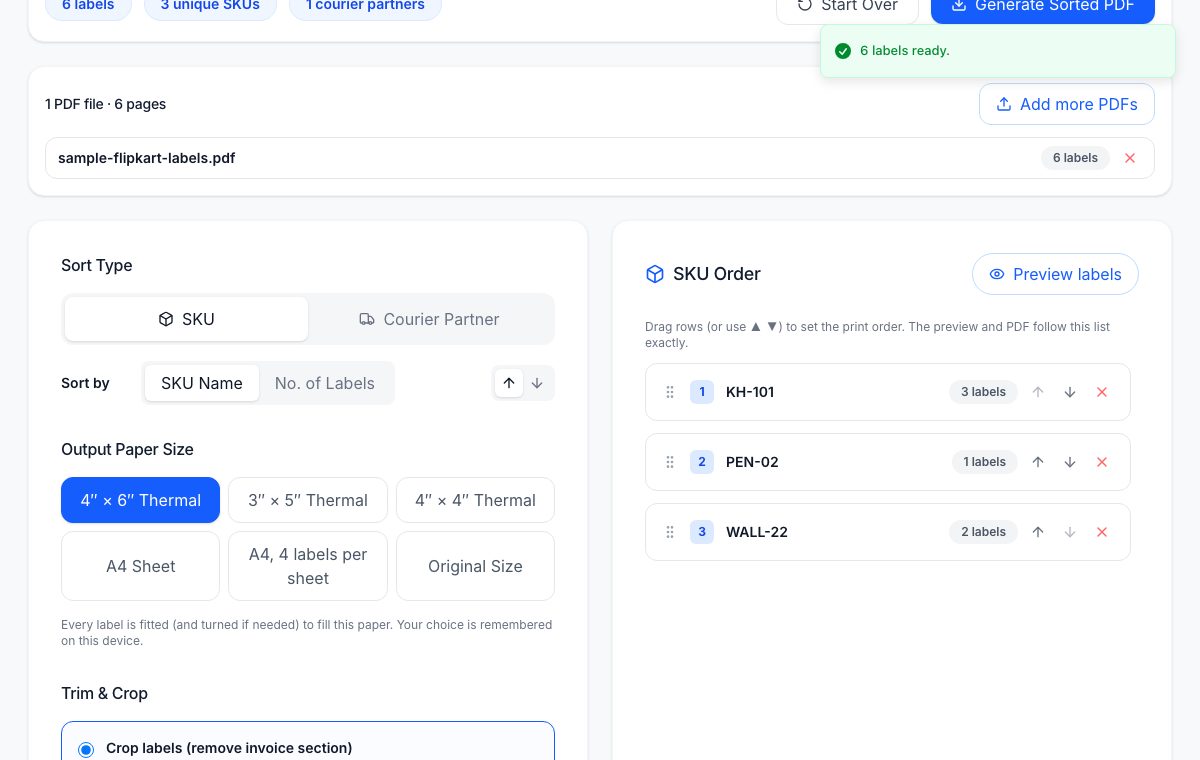
Choose the Output Paper Size that matches the roll in your printer: 4x6, 4x4 or 3x5 inch thermal, A4 Sheet, A4 with 4 labels per sheet, or Original Size.
Set Sort Type to SKU or Courier Partner, using the table above.
Look at the order list. If one order must go first (an urgent dispatch, or a SKU that is running low), drag its row or use the ▲ ▼ buttons. The preview and the PDF follow this list.
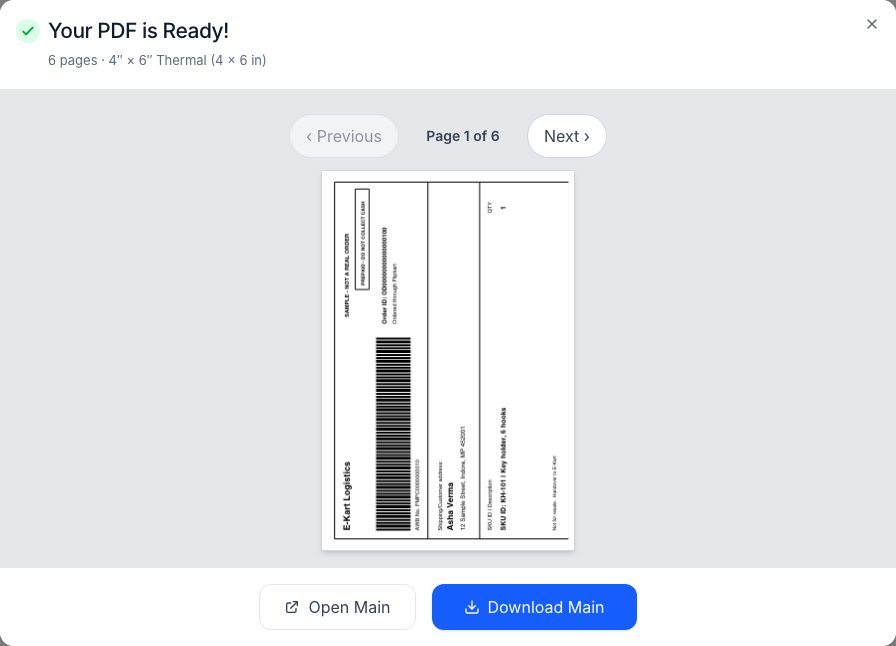
Check a few labels in the preview, from the start, middle and end of the batch: address, barcode, order ID and SKU. Then select "Generate Sorted PDF". The file name carries the platform, the order count and the date, for example bhintika-flipkart-42order-26oct.pdf, so the day's files are easy to find later.
Print one label at 100% (Actual Size) with "Fit to page" off, scan its barcode with your phone, then print the rest.
4x6, 4x4 or 3x5: choosing the thermal size
Choose the size of the labels on your roll. The cropped label is fitted to the paper you pick, so a 4x6 file on a 4x4 roll will print wrong however good the crop is.
| Size | In mm (approx.) | Notes |
|---|---|---|
| 4x6 inch | 100 x 150 | The most common shipping label roll; the label has the most room, so text and barcode stay largest |
| 4x4 inch | 100 x 100 | Shorter label, same width; check that the barcode still scans on a test print |
| 3x5 inch | 76 x 127 | Narrower and shorter; the label is scaled down more, so test the barcode before a batch |
Printer settings that keep a sorted batch in order
The full driver walk-through is in the 4x6 thermal printer setup guide. If a label prints clipped or shifted, see shipping label print cut off.
- Set the paper size in the printer driver to the same size you chose in the tool. A 4x6 PDF on a driver set to A4 prints stretched or cut.
- Print at 100% or "Actual size" and turn off "Fit to page" and auto-rotate, in the PDF reader and in the driver.
- Use the maker's own driver for your thermal printer and run its label calibration after you load a new roll, so labels do not drift across the batch.
- Print the batch in one job. If the printer stops halfway, note the last label printed and print from the next page, so the order is not broken.
Your PDFs stay on your computer
Label PDFs carry customer names, phone numbers, addresses and order IDs. The Seller Help tool reads and crops them inside your browser tab, so the files are not uploaded to a server. You also do not need an account or your Flipkart login to use it.
Cropping in the browser does not protect against a shared computer or a doubtful browser extension, so close the tab when you are done and delete old label files you no longer need.
A packing routine that uses the sorted file
Download all of the day's Flipkart label PDFs and add them to the tool in one batch.
Sort by SKU if picking is your slow step; sort by Courier Partner if handover is.
Print the batch in order, then pack in that order: the label on top of the stack tells you the next product.
With courier sort, put each courier's parcels on a separate stack as you pack. The stacks are ready when the pickup agent arrives.
Before sealing, match the SKU and quantity on the label with what goes in the box. You still need this check on a sorted batch.
Frequently asked questions
Can I crop several Flipkart label PDFs at once?
Yes. Add all the PDFs in one go with "+ Add PDF files". Each file can have up to 1,000 pages and 100 MB, and one batch up to 2,000 pages and 200 MB. You get one cropped and sorted PDF.
How do I sort Flipkart labels by SKU?
In the Flipkart label crop tool, set Sort Type to SKU before you select "Generate Sorted PDF". Labels of the same SKU print together, so you can pack one product at a time.
What happens when I sort Flipkart labels by courier?
Each courier's labels print together, and inside each courier the labels are grouped by SKU. Labels without a readable SKU, and a group whose courier could not be read, come last.
Can I print Flipkart labels on 4x4 or 3x5 thermal rolls?
Yes. Choose 4x4 or 3x5 thermal as the Output Paper Size, set the same size in the printer driver, and scan the barcode on a test label before printing the batch.
Is the Flipkart label cropper free?
Yes. The Seller Help Flipkart label crop tool is free, needs no account or Flipkart login, and reads your PDFs in the browser without uploading them.