How to Crop Flipkart Shipping Labels for Thermal Printers Without Logging In
Flipkart gives you the shipping label and the tax invoice together on an A4 page, which a 4x6 thermal printer cannot print properly. A Flipkart label cropper removes the invoice and gives you a file in the right size. The free Seller Help tool does this in your browser, with no login, and your PDF is not uploaded.
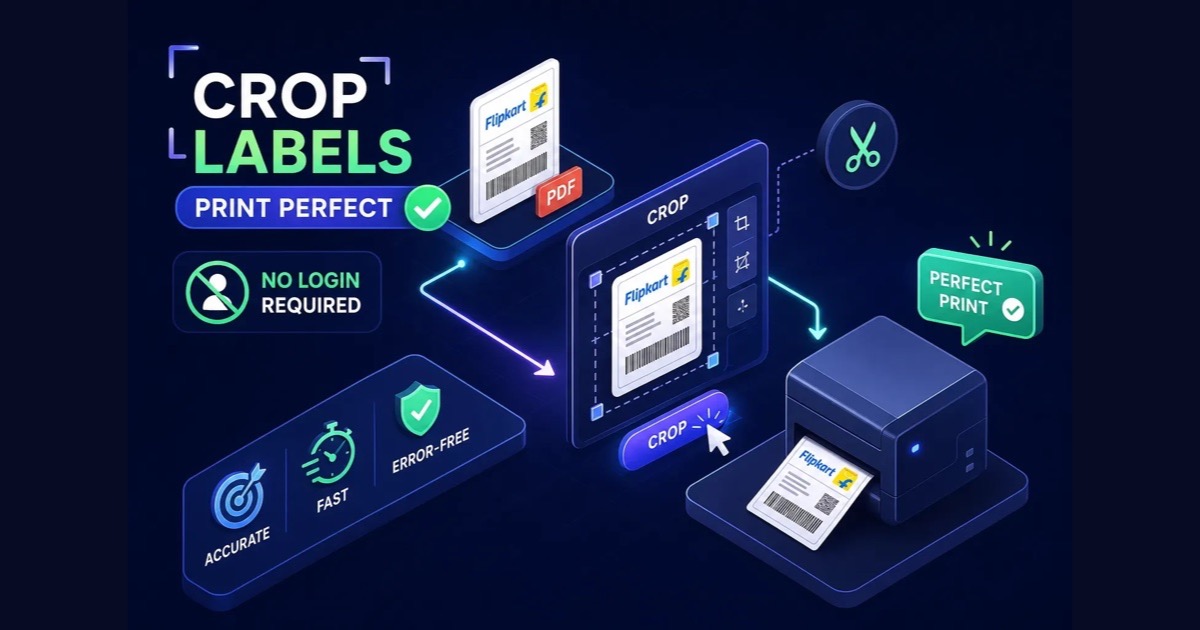
Why Flipkart A4 label PDFs do not print correctly on thermal printers
If you have ever sent a Flipkart shipping label PDF straight to a thermal printer, you know the result: a tiny stamp in one corner, or a stretched label that the courier's scanner rejects.
Flipkart packages each order as an A4 page with two parts: the shipping label at the top and the tax invoice below. The label holds the delivery address, barcode, order ID, courier details and any COD or special handling marks. A 4x6 thermal printer either shrinks the whole A4 page to fit the roll, which shrinks the barcode with it, or prints only part of the page and cuts off the rest.
Even a small reduction in barcode size can push it outside what a courier's handheld scanner accepts, and a label cut off in the middle of the address gets flagged at the sorting centre. Both mean a delayed pickup or a hurried re-print. For a seller sending 20 to 100 orders a day, two or three failed labels in a batch add up at handover. Cropping the label PDF before printing fixes this, and once your routine is set it takes a minute or two.
What separates a good Flipkart label cropper from a risky one
A Flipkart shipping label PDF is not an ordinary document. It carries your customer's full name, mobile number, delivery address, order ID and SKU details, and your GSTIN. Many free online croppers upload your file to their server, process it there and promise to delete it later. "Deleted after 24 hours" is a policy claim, not a guarantee.
A tool that processes the PDF inside your browser, with no upload, removes the most common risk: your file being sent to and kept on someone else's server. It is not protection against everything (a compromised device or a browser extension can still be a problem), but it is a real difference for a small seller who handles hundreds of customer records a month.
Beyond privacy, a reliable cropper should give 4x6 inch (100 x 150 mm) output, handle a PDF with many pages in one go, and let you sort labels by SKU or courier before you export. It should also remember your settings, so you do not set the paper size again every morning. Tools that make you create an account, confirm an email or connect a marketplace login add steps that a seller who only wants to print and pack does not need.
How the Seller Help Flipkart label cropper works without any login
Seller Help by Bhintika is a free set of browser tools for Indian marketplace sellers. Its Flipkart label cropper reads your PDF inside your browser tab. The file is not sent to a server, so customer addresses and order IDs stay on your computer. There is no login, no marketplace password and no account to create: open the tool, add your PDF, and it runs in Chrome or any modern browser with nothing to install.
The tool gives 4x6 inch, 3x5 inch and 4x4 inch thermal output, as well as A4 and the original page size. It remembers the paper size you used last, so the next time you open it your size is already selected.
Step by step: crop the Flipkart label PDF, sort, and export for 4x6 printing
- Download the label PDF. In the Flipkart Seller Hub, open Orders, select the orders that are ready to dispatch and download the labels as one PDF. Save it in a clearly named folder, for example FK_Labels_12Oct, so you can match it with your pickup manifest later. Do not edit or screenshot the PDF first: that can distort the barcode.
- Add the PDF to the Flipkart label crop tool and choose the output size. For most thermal printers in India this is 4x6 inch (100 x 150 mm). One setting applies to every page, so there is nothing to adjust page by page. If your printer uses 3x5 or 4x4 labels, choose that size before you generate the file.
- Sort the labels by SKU (useful when products are packed from different shelves) or by courier (useful when you hand over to more than one pickup agent).
- Generate the sorted PDF and open it. Print at Actual Size (100%), with the page size set to 100 x 150 mm and "Fit to Page" turned off.
- Print one test label and scan its barcode before you print the whole batch. This one habit catches a wrong setting before it becomes 50 wasted labels.
Flipkart thermal label printer settings that keep barcodes sharp
The most common mistake is letting the PDF reader scale the label to "fit" the page. Always print at Actual Size or 100%, and turn off "Fit to Page", "Shrink Oversized Pages" and auto-rotation. Set the paper size in the print dialog to 4x6 inch, or make a custom size of 101.6 x 152.4 mm. The PDF page size, the driver page size and the real label must all match.
For the Xprinter, TSC and Zebra printers many Indian sellers use, install the maker's own driver, not a generic Windows one. In Printer Preferences, set the stock size to your label roll, choose Direct Thermal as the media type (heat-sensitive labels need no ribbon) and set darkness to about 8 to 10. A print speed of 2 to 4 inches per second gives dark, readable barcodes without smearing. Calibrate the printer whenever you change the roll type, so it finds the gap between labels.
To make a custom 4x6 size in Windows: open Settings, go to Printers and Scanners, select your thermal printer and open Printing Preferences. On the Page Setup, Paper or Stock tab click New or Custom, enter a width of 101.6 mm and a height of 152.4 mm, name it "4x6 Label" and save. From then on choose this size, not A4 or Letter. The full walk-through is in the 4x6 thermal printer setup guide.
Common label printing mistakes and how to fix them fast
More cases are covered in how to fix a shipping label that prints cut off.
- Part of the barcode is missing: the page size of the cropped PDF and the stock size in the driver do not match. Check the page size of the PDF in your PDF reader (Document Properties) and set the same size in the driver.
- The label prints smaller than the roll: "Fit to Page" is on somewhere, in the PDF reader or in the driver. Turn it off in both.
- The label prints stretched or taller than the roll: the driver is set to A4 while the PDF is 4x6. Set the driver's stock size to 4x6.
- The settings look right but the print is still wrong: remove and install the printer driver again. A damaged driver profile can ignore your settings.
- The barcode scans at your desk but fails at the courier: the blank white margin beside the bars (the quiet zone) is missing. Do not trim a label right up to the barcode; a few millimetres of white on each side keeps it readable.
The routine that ends daily label trouble
Download the label PDF from Seller Hub, run it through a cropper that works inside your browser, sort by SKU or courier, and export a file in the size your printer uses. Seller Help does this for free, with no account and no login, and your PDF stays on your device.
Then print at 100% scale, calibrate the roll, and print one test label before the batch. That removes almost every barcode failure sellers run into, and the minutes saved each day add up over a week of dispatches.
Frequently asked questions
Can I crop Flipkart labels without logging in?
Yes. The Seller Help Flipkart label crop tool needs no account and no marketplace login. You add the label PDF you downloaded from Seller Hub and it is cropped inside your browser.
Is my Flipkart label PDF uploaded when I crop it?
No. The PDF is read and cropped in your browser tab and is not sent to a server, so customer names, addresses and order IDs stay on your device.
Why does my Flipkart label print small on a 4x6 thermal printer?
The Flipkart PDF is an A4 page with the label and the invoice together, and the printer shrinks the whole page to fit the roll. Crop the label first, then print at 100% with "Fit to Page" turned off.
Which print settings should I use for Flipkart 4x6 labels?
Paper size 4x6 inch (100 x 150 mm), scale 100% or Actual Size, "Fit to Page" off, media type Direct Thermal. Print one test label and scan it before the batch.