Flipkart seller guide
Flipkart Barcode Generator: Do You Need a Product Code or a Shipping Label?
Quick answerBefore using a Flipkart barcode generator, decide what the barcode is for. A product identifier, an internal stock code and a shipment's barcode are different things. A tool that draws bars around a number does not make that number assigned to your product or valid for a Flipkart shipment. Seller Help's label crop tool prepares a shipping PDF you already have; it does not register product codes or generate shipping barcodes.
On this page · 8 sections
First decide which barcode you need
Never turn a guessed order number into a barcode and stick it over the original label. It may scan, but it is not the shipment code the courier's system expects.
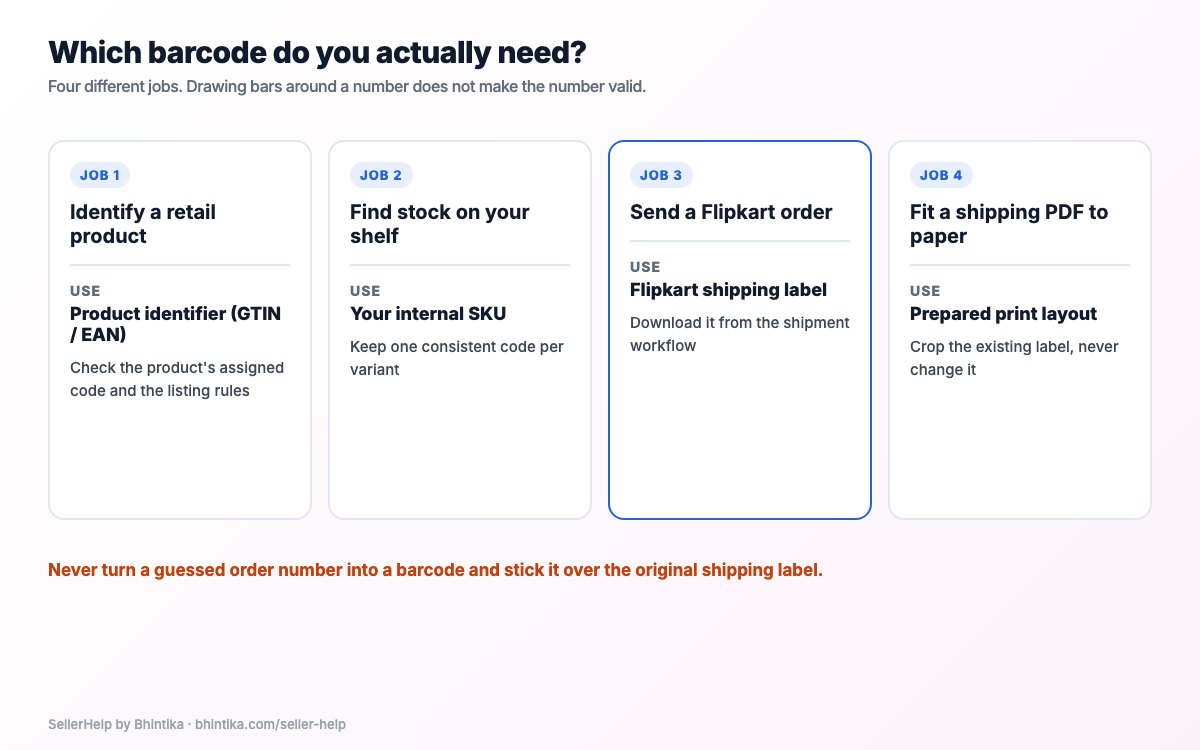
| Need | Identifier or document | Right next step |
|---|---|---|
| Identify a retail product where asked | Product identifier such as GTIN or EAN | Check the product's assigned code and the current listing rules |
| Find stock on your own shelf | Your internal SKU | Keep one consistent code per variant and label your shelves with it |
| Send a Flipkart order | The shipping label Flipkart generates | Download it from the shipment workflow |
| Fit a shipping PDF to your paper | A prepared print layout | Crop or arrange the existing label without changing it |
A product number and a barcode image are separate
A barcode only stores data. Making a barcode image does not tell you where the number came from or whether you may use it.
GS1 India's barcode registration page explains how it gives out GTIN/EAN numbers and DataKart access. If your product needs that kind of identifier, use a number assigned to you through that process, never one copied from another product.
Listing rules are not the same for every category or brand. Check the current requirements in your Flipkart Seller Hub before assuming a particular identifier or exemption applies.
Shipping labels come from the shipment workflow
Flipkart's Download Labels API documentation describes printing the shipping label, and the invoice where auto-invoicing is used, for packed shipments by their shipment IDs. In other words, the label belongs to a real shipment in Flipkart's system.
Those are developer documents, not a reason to type your Seller Hub login into an outside generator, and Seller Hub buttons may be named differently. For everyday work, follow how to download Flipkart labels and invoices and the steps shown in your account.
When a cropper is the right tool
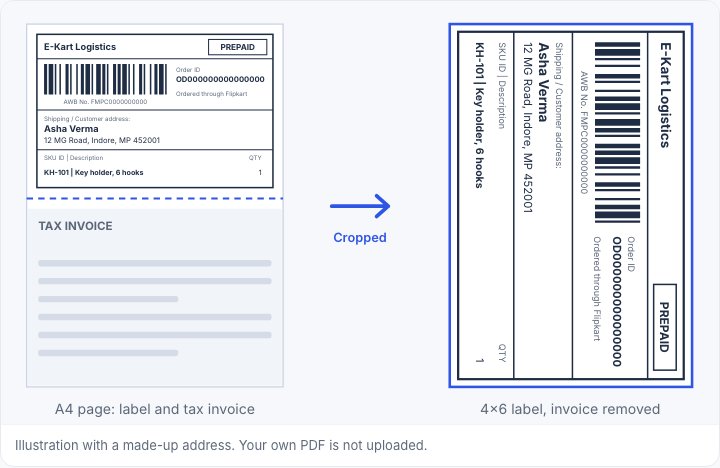
If you already have the shipping PDF and want label-only printing, use the Flipkart crop guide. Cropping changes the layout, not the shipment.
Keep the full address, barcode, AWB and order details intact, and keep the original PDF. Never redraw a damaged shipping barcode from guessed text: download the label again or sort it out in Seller Hub.
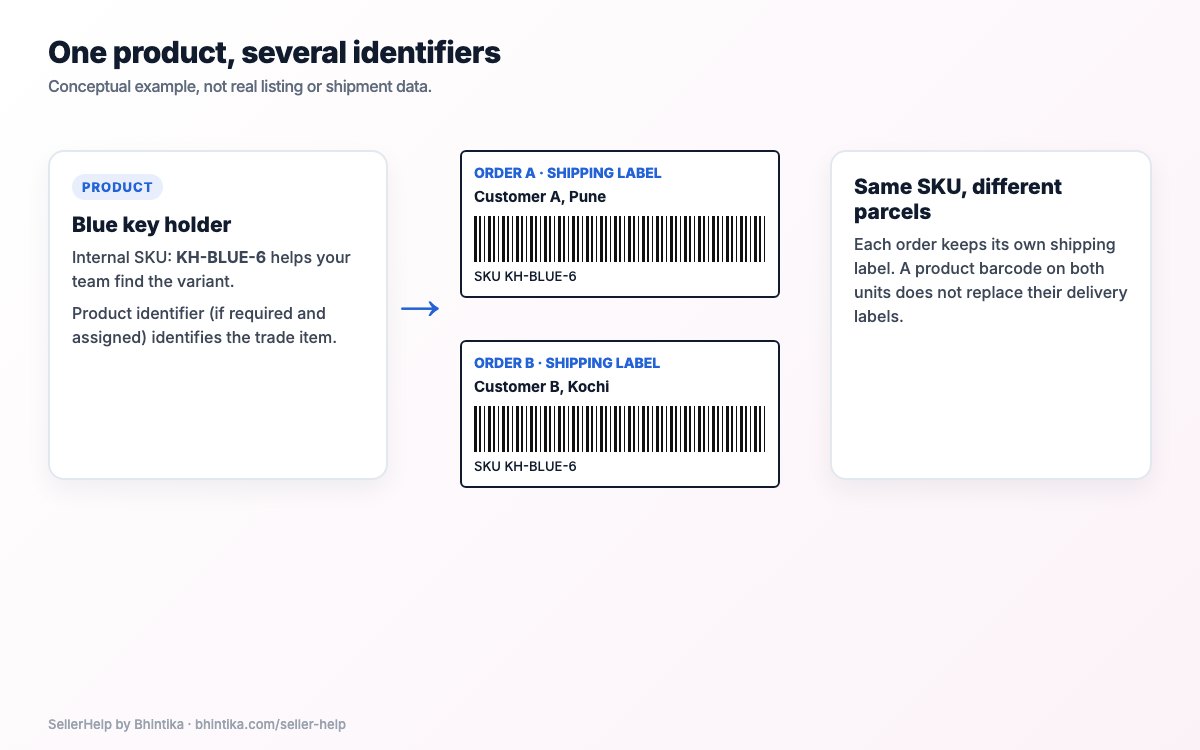
Example: one product, several identifiers
Take a blue key holder with the internal SKU KH-BLUE-6. This is a concept example, not real listing or shipment data. The SKU helps your team pick the right variant. A product identifier, if required and assigned, identifies the item. Order A and order B each have their own shipping label, even with the same key holder inside.
Printing the same product barcode on both units does not replace their delivery labels, and grouping both labels under one SKU does not make their addresses interchangeable. Use SKU sorting for packing order while keeping each order's label.
Checklist before using a barcode service
A successful scan does not prove you own a product code, that the listing data is right or that a shipment will be accepted. Reading the characters is only one part of the job.
Say whether the job is product identification, internal stock or shipping a parcel.
Find the exact identifier from the right source.
Check the current Flipkart requirements for that job.
Confirm the barcode type, data and layout the receiving system needs.
Inspect the physical print.
Keep a record of where the data came from and who assigned it.
Common mistakes to avoid
| Mistake | Better check |
|---|---|
| Copying a similar product's barcode | Make sure the identifier belongs to your actual item |
| Putting an internal SKU where a product identifier is asked for | Read the field and its rules |
| Replacing the shipping barcode with generated artwork | Download the correct label from Flipkart |
| Treating a cropper as a label generator | Use cropping only to prepare the layout of an existing label |
| Taking a scan as marketplace approval | Check both the data rules and the platform workflow |
Frequently asked questions
Can a free generator give me an authorised product identifier?
Drawing a barcode image and getting an assigned identifier are different services. Find out what the provider actually supplies and what your product needs.
Can I make a Flipkart shipping label from the order number alone?
No. Use the label Flipkart generates for the shipment, with all its shipment details.
Does Seller Help generate product barcodes?
No. The Seller Help Flipkart label crop tool prepares shipping PDFs you already downloaded; it does not create product or shipping barcodes.
Is an internal SKU the same as an EAN?
No. An SKU is your own stock code. A GTIN or EAN is an identifier assigned through a numbering system such as GS1.