Amazon seller guide
Amazon Label Types: Easy Ship, FBA Item Labels and Shipment Box Labels
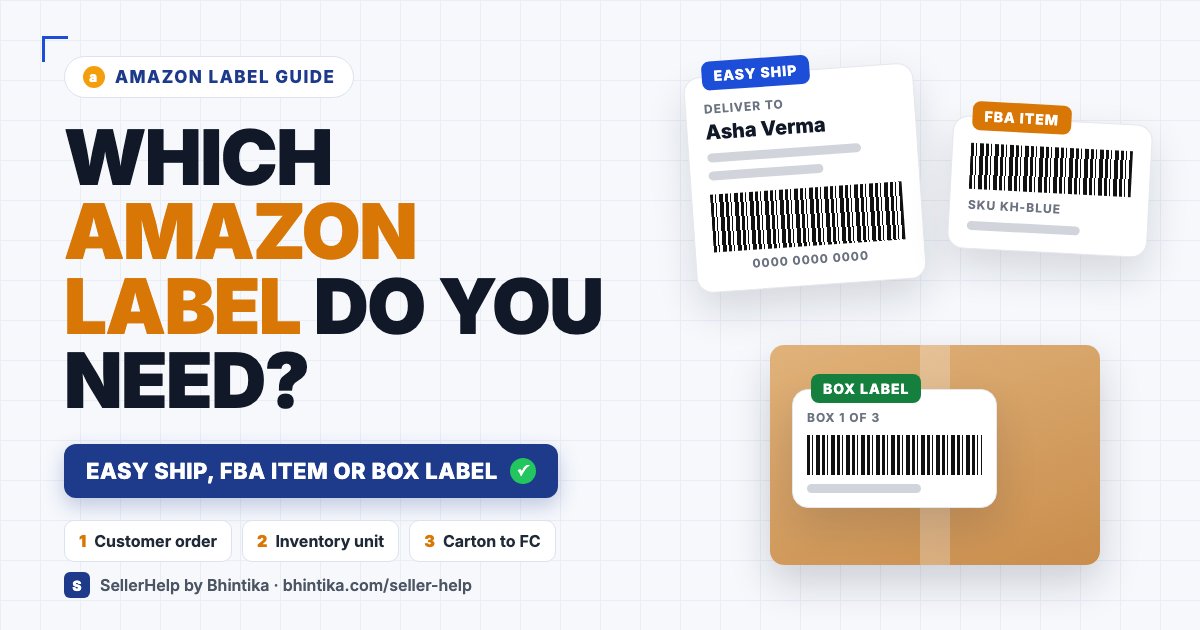
Quick answerAn "Amazon label" can mean three different things: a customer shipping label for an Easy Ship order, an item barcode label for an FBA inventory unit, or a box label for a carton you send to a fulfilment centre. Choose the label by what is moving: a customer order, an inventory unit or a carton of stock. One label type does not replace another. This guide helps you pick the right one; confirm current requirements in the matching Seller Central task before printing.
On this page · 8 sections
Identify the task before choosing the label
Amazon's official label overview separates Easy Ship shipping labels from FBA product barcode labels, and its FBA inbound guidance separates product label problems from shipment identification. Check the current workflow in your account for the detailed rules.
| Task | Label to check | Common mix-up |
|---|---|---|
| Send a customer order through Easy Ship | The customer shipment label for that order | Using an inventory barcode instead |
| Identify an item for FBA | The product barcode or item label that applies | Assuming every product needs the same code |
| Send cartons of stock to a fulfilment centre | Box labels from the inbound shipment workflow | Reusing a customer-order label |
| Reprint a damaged label | The same document from the same Seller Central task | Making a replacement from guessed data |
Easy Ship shipping labels belong to one customer order
Use the label Amazon gives you for that order and shipment. Keep the full delivery details and every barcode intact. Another customer's label cannot be used just because the product SKU is the same.
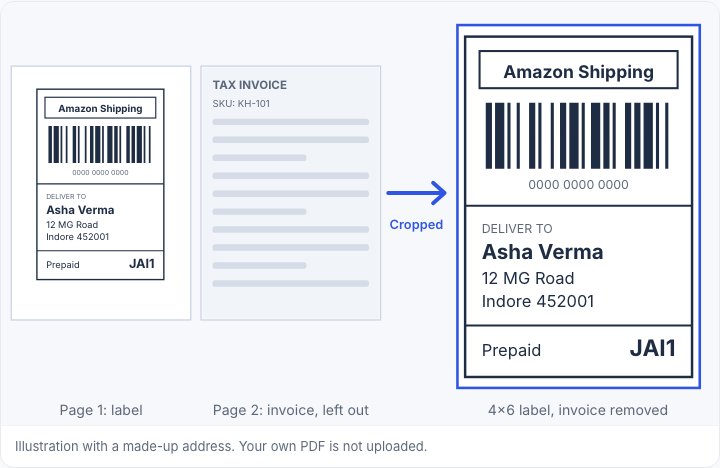
If your Easy Ship PDF comes with invoice pages and you want label-only printing, follow the Easy Ship crop guide. Cropping prepares the file you already have; it does not schedule the pickup or create new tracking data.
For printer settings, use the Amazon thermal printing guide.
FBA item labels identify inventory units
Labelling a unit for FBA is a different job from delivering a customer order. Check whether your product's current FBA workflow asks for an Amazon barcode or allows another barcode arrangement. Do not assume an exemption, or one rule for every product.
Get the item label from the listing or inventory workflow in Seller Central, and match its title and variant to the physical unit. A valid barcode on the wrong product is still a mislabelled unit.
The Amazon label crop tool prepares Easy Ship PDFs. It is not a template for making FBA barcode labels.
Shipment box labels identify the inbound carton
When you send cartons to a fulfilment centre, follow the box labelling steps in your shipment plan. Keep each box's label, contents and destination together. Do not put a customer Easy Ship label on a carton just because both documents say "shipping".
The same shipment can need both item labels and box labels. Check the actual inbound workflow instead of assuming one label covers every layer of packaging.
Example: one product, three separate jobs
Take a blue key holder. This is a concept example, not a real shipment plan. The internal SKU may appear in all three jobs, but that does not make the labels interchangeable. Keep a note of what is moving and where the label came from before printing.
A customer order sent through Easy Ship needs the shipping label for that customer's shipment.
A unit prepared for FBA needs the product identification its FBA workflow asks for.
A carton of units sent to a fulfilment centre needs the box label from the inbound shipment plan.
Reprint the correct label instead of redrawing it
If a print is damaged or a file is missing, go back to the same Seller Central task and use its reprint or download option. Check that the shipment or inventory status still matches the label.
Never turn a number into a barcode image to imitate a missing label. One scanner reading it does not mean Amazon's system expects that code. Keep old or wrong printouts away from the packing table so they cannot be stuck on by mistake.
Checklist before you print any Amazon label
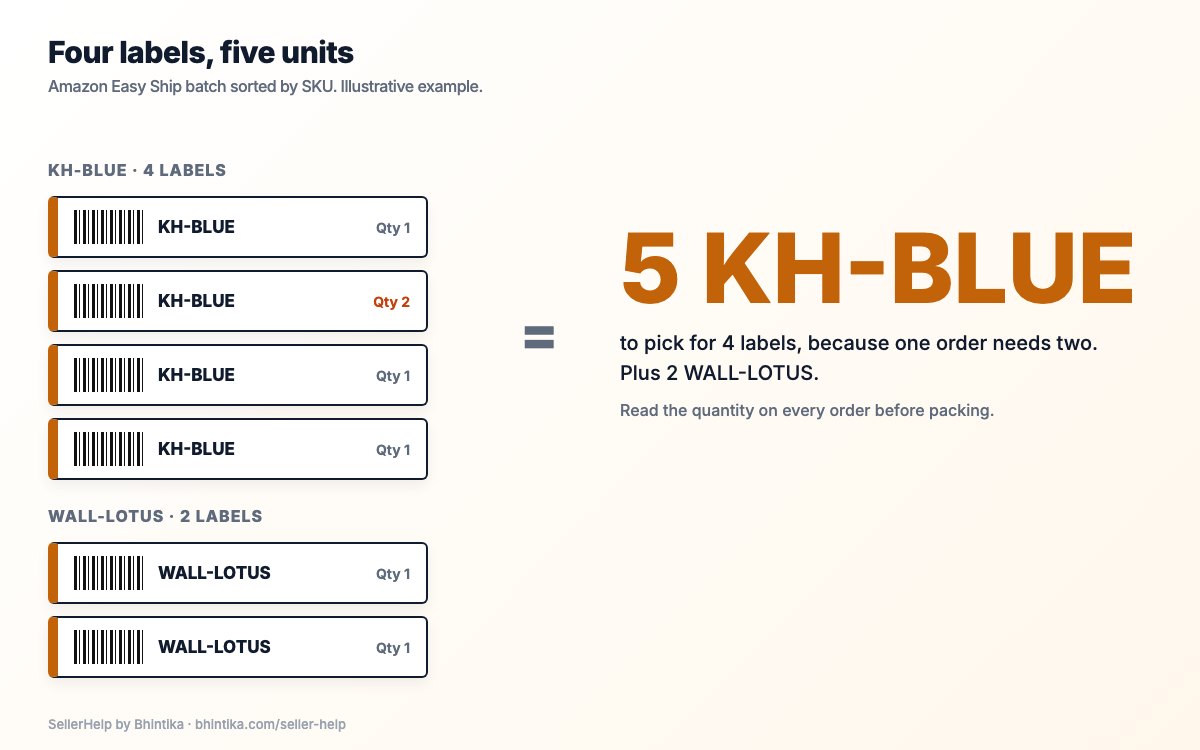
Sorting labels by SKU helps with Easy Ship packing only. A product group is not an inbound shipment plan or a customer address.
- Say what is moving and where it is going.
- Decide whether the label is for a unit, a carton or a customer shipment.
- Get the document from the matching Seller Central workflow.
- Compare the product variant, contents and codes with the physical item.
- Apply the current size and placement rules for that label.
- Print one, check it, and keep each label with its item or parcel.
Frequently asked questions
Is an FBA product barcode the same as an Easy Ship label?
No. Product identification and the customer shipment are different jobs. Use the right document for each.
Can every Amazon label be printed on 4x6 labels?
Do not assume so. Check the current size rules for that label type. An Easy Ship setting does not tell you the FBA item label size.
Does Seller Help make FBA item labels?
No. The Seller Help Amazon label crop tool prepares Easy Ship label PDFs you have already downloaded.
Can I reuse a label from a similar order?
No. Every label belongs to one shipment. A similar product or address does not make it the same shipment.