Meesho seller guide
How to Check a Meesho Shipping Label Barcode Before Dispatch
Quick answerIf you searched for a "Meesho scanner online", first decide what you need: read a barcode, match a parcel to an order, check tracking or judge print quality. These are different jobs. A phone or browser reader may read a code, but that alone does not confirm the right parcel, update Meesho tracking or guarantee the courier accepts it. This page is an inspection guide, not an online scanner.
On this page · 8 sections
What does a scan actually tell you?
Reading a barcode and verifying its print quality are different: a reader just captures the data, while verification measures the print against a specification. Neither one tells you the parcel is right.
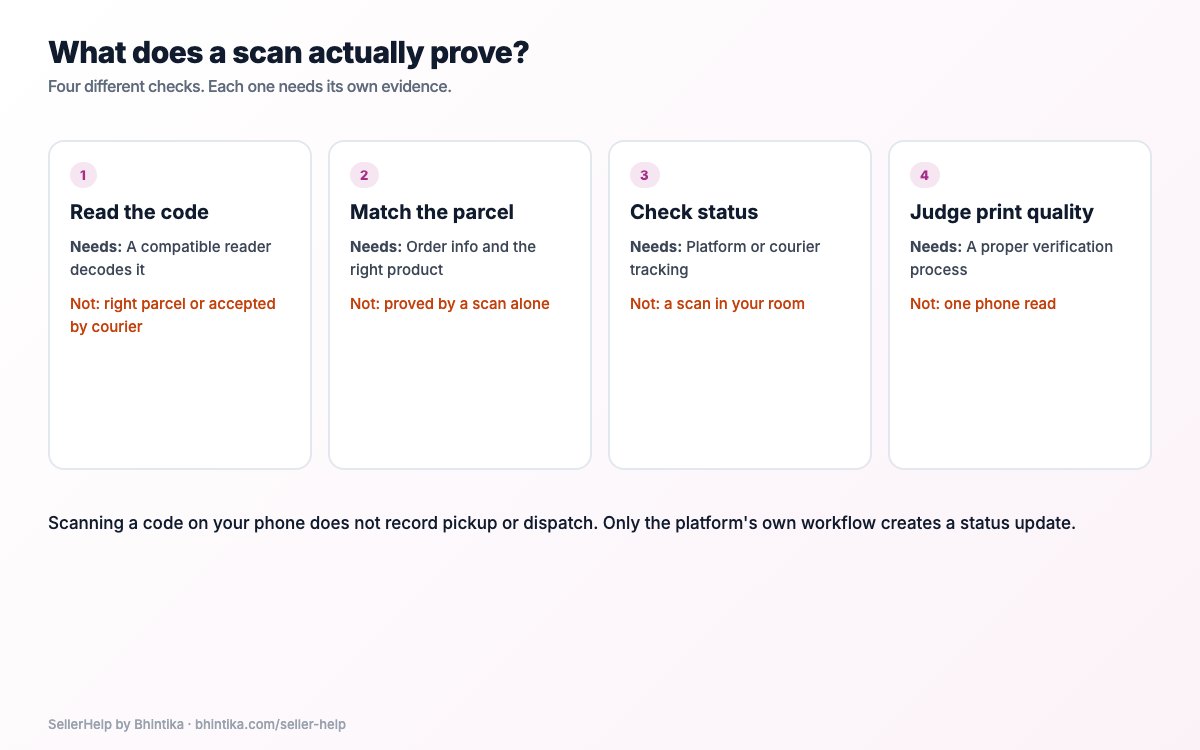
| Job | Evidence you need |
|---|---|
| Read the encoded data | A compatible reader decodes the intended code |
| Match a parcel to an order | The order details and the right label-to-product match |
| Check delivery status | The tracking record in Meesho or the courier's system |
| Judge barcode print quality | A proper verification process and specification |
Start with the original PDF
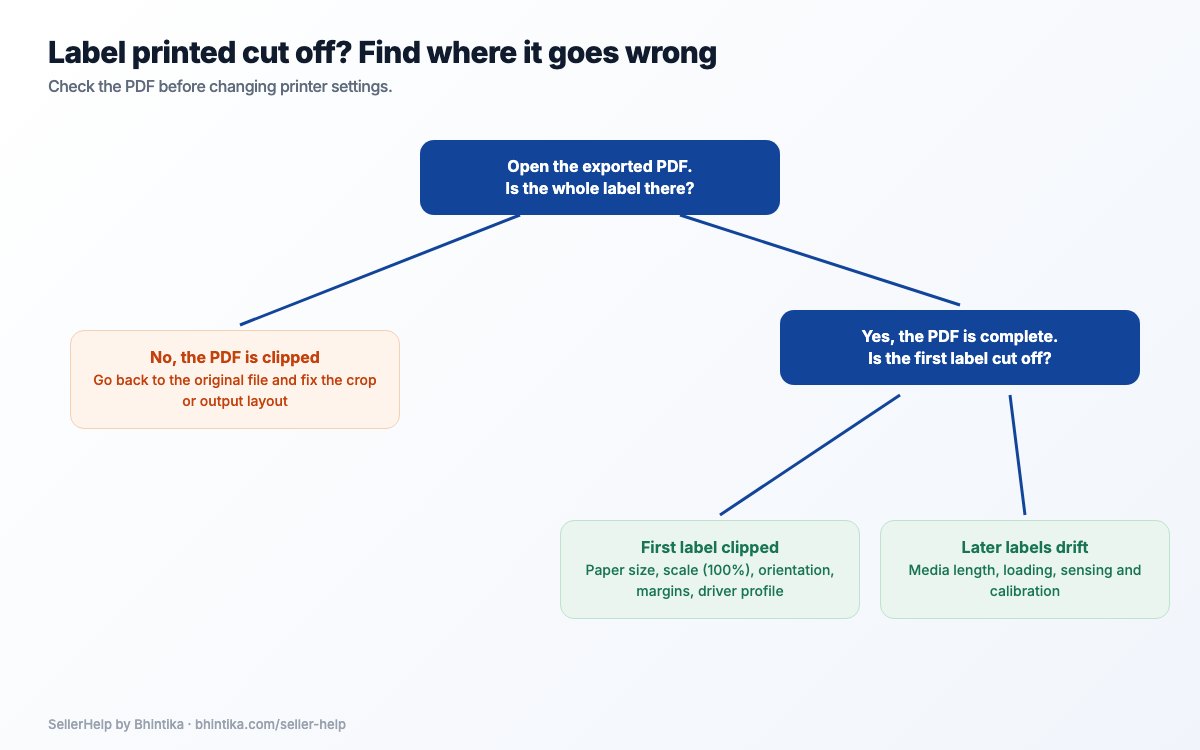
Compare the printed label with its original file. Make sure the prepared file has not clipped the barcode, QR code, address or shipment details.
If the prepared PDF is already missing something, no camera app or darker print can bring it back. Download the label again from your Meesho Supplier Panel or prepare it again with how to crop Meesho shipping labels.
Check the file and the paper separately: a code that reads on screen may not read when printed small or damaged.
Inspect the physical label
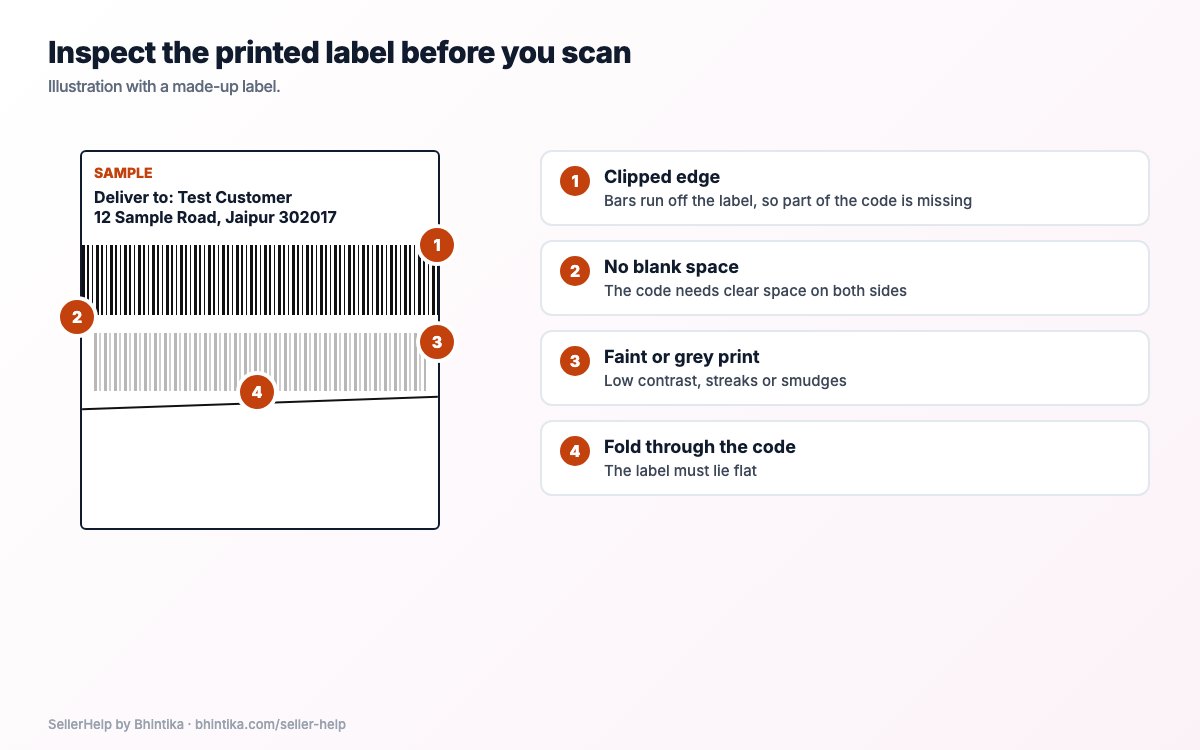
Look before you scan. Do not stretch, redraw or replace a code just to get one reader to accept it; fix the file or the printing and keep the original shipment data. See how to print Meesho shipping labels for printing, and label printing that is cut off when the print loses an edge.
- The bars are complete, with no clipped edge.
- There is clear blank space around the code.
- The print is dark and sharp, not grey, streaked or smudged.
- The label is flat, with no fold through the code.
- The delivery text and order details are readable.
Try a suitable reader as a first check
Use a reader that supports the type of code you are checking. A phone camera that reads QR codes does not always read every linear barcode, so one failed attempt does not prove the label is bad.
Use even light, hold the label flat and let it focus. If it reads a value, compare it with the matching field only where you know what that field is; do not guess what every character means. Scanning a code yourself does not record pickup or dispatch: only Meesho's own workflow creates a status update.
Keep customer details away from unknown scanner sites
Shipping labels carry personal and order details. Before using a browser reader, check whether it reads the image on your device or sends it to a server, and whether you trust it. "Online" or "free" says nothing about how data is handled.
Test a new service with a made-up label first, and never post real label photos in public groups. When you share a screenshot to get help with a layout, hide customer details.
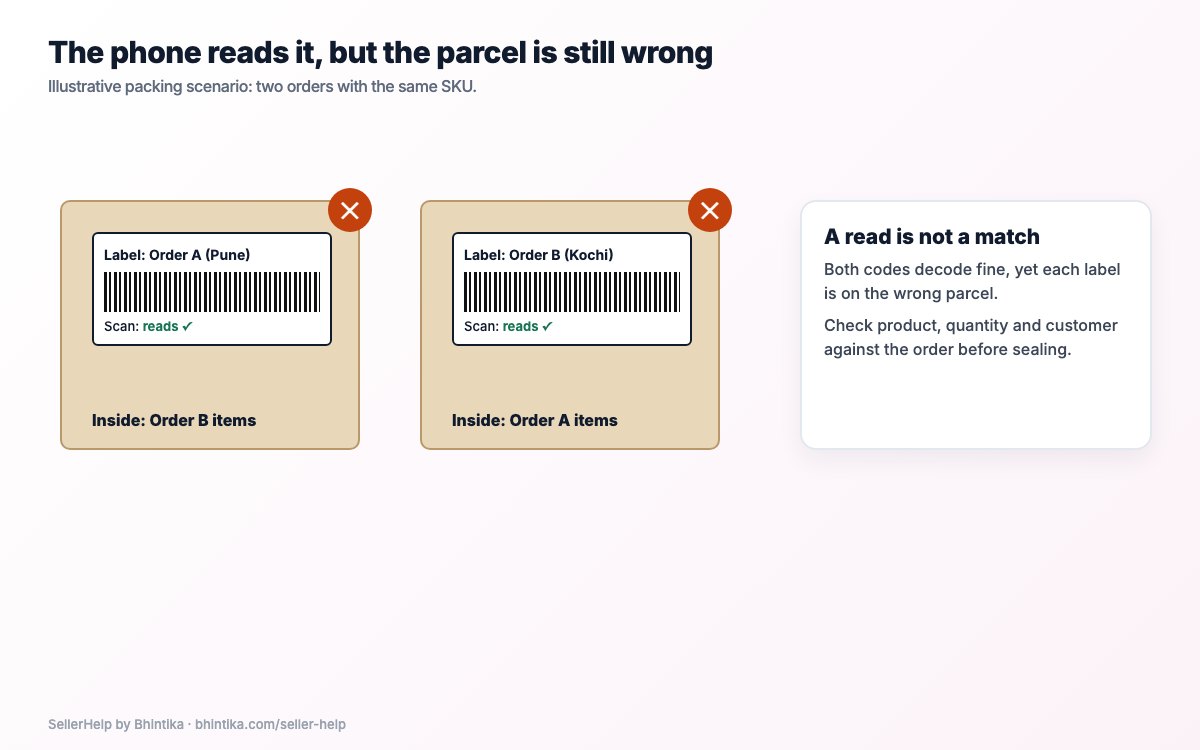
Example: the phone reads it, but the parcel is wrong
Two parcels hold the same SKU but belong to different customers (an illustrative packing case). Both barcodes scan fine, yet each label is stuck on the other parcel. The scan did not check the product, quantity or customer, so match every parcel to its order before sealing and handover.
The opposite also happens: a reader that cannot read a code may just not support that format. Check the source file before assuming the label is broken.
Diagnose a failed check
For repeated print failures, keep a made-up test print and your printer settings to show support. For shipment problems, use Meesho or courier support instead of making new barcode data.
| What you see | Next step |
|---|---|
| The barcode is clipped in the file | Download again or fix the prepared layout |
| The file is fine but the print is clipped | Check output size, labels and printable area |
| Missing lines or faint areas in the print | Check supplies and printer maintenance |
| The QR code reads but the linear barcode does not | Check the reader supports that barcode type |
| The code reads but tracking does not change | Use Meesho's own status workflow; a scan is not a tracking event |
| The label belongs to another order | Fix the parcel-to-order match before dispatch |
Frequently asked questions
Does a successful phone scan guarantee pickup?
No. It shows that one device read the code in those conditions. The right data, label placement and order checks still matter.
Can a scanner show me all the order details?
Not necessarily. Decoding a barcode and having access to order records are separate. A generic reader cannot open private marketplace records.
Can I check the label from a screenshot?
A screenshot helps with some layout problems, but screen resolution and image changes affect the result. Always check the physical label you will dispatch.
Does Seller Help have an online scanner?
No. The Seller Help Meesho label crop tool prepares label PDFs; it does not scan, certify print quality or record courier events.